Spatial data is a database feature that sounds niche right up until you need it. When your application must answer questions like “what landmarks fall inside this map window?”, “what is the exact distance between these two places?”, or “what objects are near this location?”, you’re working with spatial data.
Oracle AI Database includes first-class support for spatial data. You can store geometry in tables, index it, and query it with specialized operators right alongside your relational data. In this article, we’re going to do all of that with plain Java over JDBC, illustrated by the sample jdbc-spatial-example module.
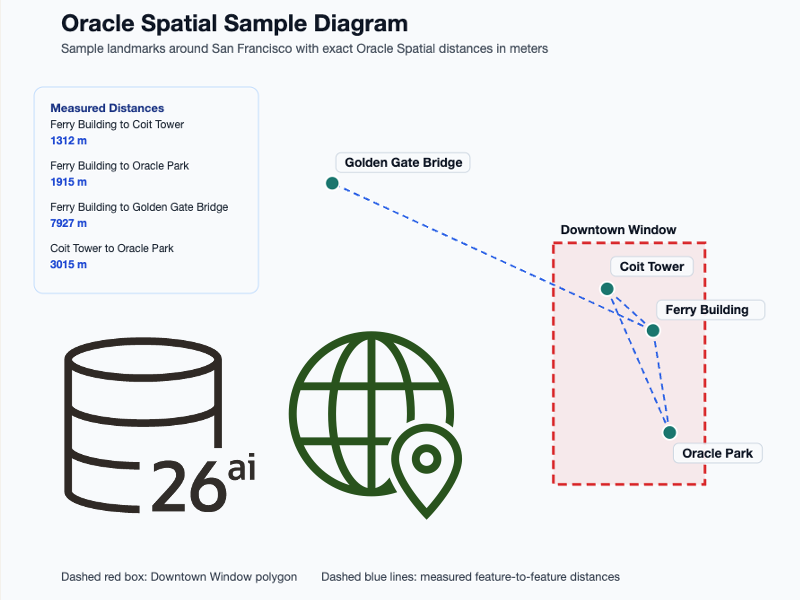
The sample loads a handful of San Francisco landmarks, stores them as Oracle Spatial geometries, runs a few useful queries, and generates an SVG diagram so you can see the data you just worked with.
We’ll cover:
- What is spatial data and why it matters
- How Oracle stores geometry in
MDSYS.SDO_GEOMETRY - How to create and persist points and polygons from Java with
JGeometry - How to use operators like
SDO_FILTER,SDO_WITHIN_DISTANCE, andSDO_GEOM.SDO_DISTANCE - How to run the sample locally with Maven and understand the geometry with a simple visualization
Spatial data primer
Spatial data describes objects by shape and location. Sometimes that’s a point, like a coffee shop or a stadium. Sometimes it’s an area, like a neighborhood boundary, delivery zone, or flood region. When your database understands geometry, it can answer location-aware and geometric questions efficiently.
This is a different type of location query than a filter like WHERE city = ?.
Instead of using scalar value filters, you ask questions like:
- Which landmarks fall inside this rectangle?
- Which features are within 2,500 meters of this point?
- How far apart are these two geometries?
- What is the minimum bounding rectangle around this polygon?
This sample focuses on those fundamentals with two geometry types:
- Points for individual landmarks in 2D space
- A polygon for a rectangular “Downtown Window” search area that contains some of these landmarks

For Oracle Spatial, there are a few concepts to familiarize yourself with up front.
SDO_GEOMETRY
Oracle stores geometry in the MDSYS.SDO_GEOMETRY data type. This type can represent many shapes, including points, lines, and polygons, and lives in columns alongside your other relational data in normal tables.
SRID
An SRID identifies the coordinate reference system for a geometry. This sample uses WGS84, with SRID 8307, which is a common way to represent longitude and latitude coordinates.
MBR
MBR stands for minimum bounding rectangle. It is the smallest axis-aligned rectangle that encloses a geometry. Bounding boxes are useful for visualization and for fast preliminary filtering. When using Java with Oracle Spatial, objects like JGeometry provide methods to retrieve the MBR.
Filter vs exact measurement
Spatial queries often happen in two stages. A fast operator narrows candidates down, then a more exact function computes the precise relationship or distance. You will see both patterns in this module.

Sample overview
The module handles schema creation, sample data loading, geometry persistence, and query execution. You can download the sample from GitHub here: https://github.com/anders-swanson/oracle-database-code-samples/tree/main/jdbc-spatial-example
The data is intentionally familiar:
- Ferry Building
- Coit Tower
- Oracle Park
- Golden Gate Bridge
- Downtown Window, a rectangular polygon over part of downtown San Francisco
That gives us enough data to demonstrate:
- Point inserts
- Polygon inserts
- Indexed window queries
- Within-distance searches
- Exact distance calculations
- Bounding box inspection
- Simple visualization

sdoapi dependency
While not required to work with spatial data, the sdoapi dependency provides useful Java classes like JGeometry (JavaDoc):
<dependency>
    <groupId>com.oracle.database.spatial</groupId>
    <artifactId>sdoapi</artifactId>
</dependency>Geometry column alongside relational data
Spatial data fits naturally into a normal relational table. Using the mdsys.sdo_geometry data type, we can create tables that use spatial data:
create table CITY_LANDMARKS (
    id varchar2(36) primary key,
    name varchar2(100) not null unique,
    category varchar2(30) not null,
    shape mdsys.sdo_geometry not null
);We can then register geometry metadata and create a spatial index:
begin
    mdsys.sdo_util.insert_sdo_geom_metadata(
        user,
        'CITY_LANDMARKS',
        'SHAPE',
        mdsys.sdo_dim_array(
            mdsys.sdo_dim_element('Longitude', -180, 180, 0.005),
            mdsys.sdo_dim_element('Latitude', -90, 90, 0.005)
        ),
        8307
    );
end;

create index CITY_LANDMARKS_SHAPE_IDX
on CITY_LANDMARKS(shape)
indextype is mdsys.spatial_index_v2;Metadata helps your data interpret the geometry column: the dimensions, value ranges, tolerance, and SRID. Spatial indexes improve the performance of spatial operators like SDO_FILTER for real world use.
Create geometries in Java with JGeometry
The sample uses oracle.spatial.geometry.JGeometry instead of manually building SDO_GEOMETRY objects. That makes the code much easier to read.
For points:
public static JGeometry point(double longitude, double latitude) {
    return JGeometry.createPoint(new double[]{longitude, latitude}, 2, SRID_WGS84);
}For the rectangular polygon:
public static JGeometry rectangle(double minLongitude, double minLatitude, double maxLongitude, double maxLatitude) {
    return JGeometry.createLinearPolygon(new double[]{
            minLongitude, minLatitude,
            maxLongitude, minLatitude,
            maxLongitude, maxLatitude,
            minLongitude, maxLatitude,
            minLongitude, minLatitude
    }, 2, SRID_WGS84);
}The rectangle is defined as a closed polygon ring, which is a good detail to notice. The first and last coordinate pair are the same, so the polygon is complete.
Persist Java geometry into SDO_GEOMETRY
Once you have a JGeometry, the sample converts it into a database object with JGeometry.storeJS(...):
statement.setObject(4, JGeometry.storeJS(geometry, connection));The insertFeature(...) method uses it to load all sample landmarks:
insertFeature("Ferry Building", "LANDMARK", point(-122.3937, 37.7955));
insertFeature("Coit Tower", "LANDMARK", point(-122.4058, 37.8024));
insertFeature("Oracle Park", "LANDMARK", point(-122.3893, 37.7786));
insertFeature("Golden Gate Bridge", "LANDMARK", point(-122.4783, 37.8199));
insertFeature("Downtown Window", "AREA", rectangle(-122.4200, 37.7700, -122.3800, 37.8100));This is a nice example of a mixed spatial dataset: several point features and one polygon stored in the same geometry column.
Read SDO_GEOMETRY back into Java objects
Reading works in the opposite direction. The sample fetches the geometry as a JDBC Struct, then converts it back into JGeometry:
Struct struct = resultSet.getObject("shape", Struct.class);
return JGeometry.loadJS(struct);That keeps the rest of the code in terms of Java geometry objects instead of low-level database internals.
Inspect the geometry’s bounding box
The sample exposes a tiny helper:
/**
 * Reads one stored SDO_GEOMETRY value and converts it back into JGeometry.
 */
public JGeometry getGeometry(String name) {
    String sql = """
            select %s
            from %s
            where name = ?
            """.formatted(GEOMETRY_COLUMN.toLowerCase(Locale.US), TABLE_NAME);
    try (Connection connection = dataSource.getConnection();
         PreparedStatement statement = connection.prepareStatement(sql)) {
        statement.setString(1, name);
        try (ResultSet resultSet = statement.executeQuery()) {
            if (!resultSet.next()) {
                throw new IllegalArgumentException("No geometry found for " + name);
            }
            Struct struct = resultSet.getObject(GEOMETRY_COLUMN.toLowerCase(Locale.US), Struct.class);
            return JGeometry.loadJS(struct);
        }
    } catch (SQLException exception) {
        throw new IllegalStateException("Unable to load geometry for " + name, exception);
    }
}

/**
 * Returns the minimum bounding rectangle for a stored geometry.
 */
public double[] getBoundingBox(String name) {
    return getGeometry(name).getMBR();
}For the Downtown Window polygon, the returned MBR is:
[-122.4200, 37.7700, -122.3800, 37.8100]Because the query window is already a rectangle, its MBR matches the polygon bounds exactly. For more complex shapes, the MBR is often a simplified envelope around the true geometry.
Run a window query with SDO_FILTER
Window queries give the database a shape, and ask which rows overlap that shape. The sample does that with SDO_FILTER:
select name
from CITY_LANDMARKS
where category = 'LANDMARK'
  and SDO_FILTER(shape, ?) = 'TRUE'
order by nameIn Java, the parameter is the Downtown Window polygon loaded from the same table:
List<String> downtownLandmarks = sample.findLandmarksInside(sample.getGeometry("Downtown Window"));The result is:
[Coit Tower, Ferry Building, Oracle Park]This is the “what falls inside the map boundary?” query pattern you see in mapping and location-aware apps.
Run a proximity search with SDO_WITHIN_DISTANCE
The second query pattern is proximity. Instead of checking overlap with a polygon, you ask which geometries fall within some distance of an origin:
select name
from CITY_LANDMARKS
where category = 'LANDMARK'
  and SDO_WITHIN_DISTANCE(shape, ?, ?) = 'TRUE'
order by nameThe sample builds the parameter string like this:
"distance=%d unit=M".formatted(distanceInMeters)And calls it like this:
List<String> nearbyLandmarks = sample.findLandmarksWithinDistance(sample.getGeometry("Ferry Building"), 2500);That returns the landmarks within 2,500 meters of Ferry Building.
Compute exact distance with SDO_GEOM.SDO_DISTANCE
If you need a precise measurement, use SDO_GEOM.SDO_DISTANCE:
select sdo_geom.sdo_distance(a.shape, b.shape, ?, 'unit=M') as distance_m
from CITY_LANDMARKS a, CITY_LANDMARKS b
where a.name = ?
and b.name = ?The sample prints two exact distances using SDO_GEOM.SDO_DISTANCE:
Distance from Golden Gate Bridge to Downtown Window: 5238.26 meters
Distance from Ferry Building to Coit Tower: 1312.32 metersThis is a good contrast with SDO_WITHIN_DISTANCE. One finds nearby candidates. The other gives you a precise measurement.
Run the sample locally
To run locally, you’ll need Java 21+, Maven 3+, and a docker-compatible environment for Testcontainers.
The module’s test, JdbcSpatialExampleTest runs the full application and verifies:
- The downtown window query returns the expected landmarks
- The within-distance query returns the expected landmarks
- The downtown polygon MBR matches the seeded rectangle
- The Ferry Building to Coit Tower distance is within an expected range
Run the test
From the sample root:
mvn testThe test starts an Oracle AI Database Free container, runs the sample end to end, and validates the results. This is the easiest way to see the module working without supplying your own database manually.
You should see output similar to:
Landmarks inside Downtown Window: [Coit Tower, Ferry Building, Oracle Park]
Downtown Window MBR: [-122.4200, 37.7700, -122.3800, 37.8100]
Distance from Golden Gate Bridge to Downtown Window: 5238.26 meters
Distance from Ferry Building to Coit Tower: 1312.32 meters
Spatial diagram written to: ./jdbc-spatial-example/spatial-diagram.svgThe generated diagram looks something like this:

Alternatively, run the application directly
If you have an Oracle AI Database instance available, run the main class with your JDBC connection settings:
mvn exec:java -Dexec.args="jdbc:oracle:thin:@localhost:1521/freepdb1 testuser testpwd"Closing thoughts
Spatial support in Oracle AI Database is deep, but this module shows you do not need to absorb the entire feature set before you can become productive. With a single geometry column, JGeometry, a little metadata, and a few well-chosen SQL operators, you can already model places, regions, and distance-based behavior from plain Java.
Leave a Reply